Bambu Studio V2.8.0 beta is now available on GitHub and it brings two genuinely new headline features alongside a long list of bug fixes that have been tracked on the community forum for a while. It is worth being clear upfront about the version landscape: V2.7.1 is the current stable public release, and V2.8.0 is the current beta. Beta releases in Bambu’s cadence are not unstable experiments — they are feature-complete releases that Bambu is inviting users to test before pushing to the wider general release channel, and they install alongside your existing version without replacing it. The usual caveat applies: 3MF files saved in the beta are temporarily not supported for upload to MakerWorld, so if you need to upload models, use the stable release version for that.
The download is at the Bambu Studio GitHub releases page. Linux users can also access the Flathub version maintained by @hadess.
The headline new feature: Assembly Guide generation
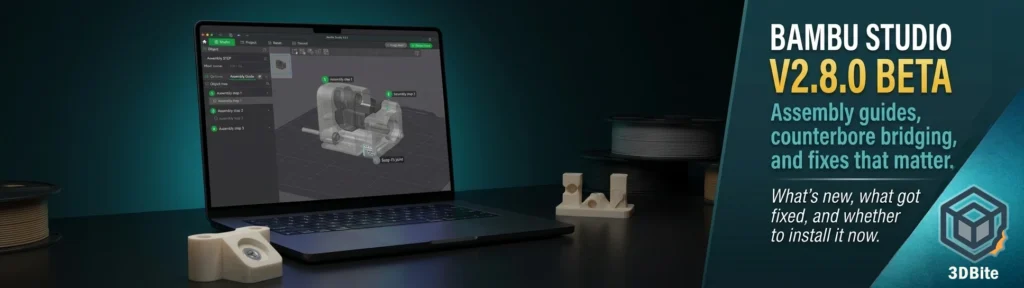
This is the feature that makes V2.8.0 interesting beyond the incremental improvements. The Assembly Guide tool is a genuinely new capability rather than an incremental improvement on something that already existed. Import a STEP file and Bambu Studio can now automatically split it into assembly steps, with visual guidance to help you understand how parts fit together.
The workflow: import a STEP file — the parametric CAD format rather than an STL, which carries assembly relationship data that STL does not — and the tool uses that relationship data to propose a logical assembly sequence. You can then edit the objects and parts of each step through the object tree, adjusting the sequence to match how you actually intend the model to be assembled.
Two viewing modes have been added to support this: X-ray mode, which makes the model semi-transparent so internal components and fitting relationships are visible, and “Show current step only” mode, which isolates the components relevant to the current assembly step without the distraction of the completed or pending parts. Both are aimed at making it clearer how components relate spatially before you commit to printing.
The output options are generous. Multiple annotation types are supported — snap-fit annotations, rectangle annotations, and text labels — so you can mark connection points, indicate orientation, or add assembly notes directly to the model view. The whole guide can then be exported as an exploded-view animation, with a unified camera view and a single-click walkthrough generation. The result is an actual assembly guide that someone could follow, generated from the slicer rather than assembled separately in a presentation or video tool.
For anyone doing multi-part prints — which on this site means most of the character figure and seasonal build projects, as covered extensively in the multi-part printing post — this is a capability that changes something real about the workflow. A complex seasonal build like the Grinch project, assembled from dozens of individual colour prints, currently has no in-slicer way to document the assembly sequence. The Assembly Guide tool makes that documentation possible within Bambu Studio itself. The limitation to note: it requires STEP file input rather than STL or OBJ. If your model source is STL only, the assembly relationship data that the tool needs is not present. Models downloaded from MakerWorld or Printables in STL format will not benefit from this feature.
Counterbore hole bridging
The second headline feature is more specific but immediately useful for anyone designing functional printed parts. Counterbore holes — recessed holes sized for a bolt head or a threaded insert, so the top surface of the fastener sits flush with or below the part surface — present a bridging challenge in FDM printing because the top circular surface of the counterbore must be bridged across the gap, and circular bridges are notoriously harder to produce cleanly than straight-line bridges.
V2.8.0 adds specific counterbore hole bridging optimisation to address this. The slicer now recognises counterbore geometry and applies improved bridging logic to the circular top surface of the recess, producing a cleaner finished surface that requires less post-processing to accept a bolt head or threaded insert cleanly. For anyone printing enclosures, brackets, functional hardware, or anything with bolted assemblies — the kind of parts that are increasingly relevant now that the A2L’s larger build volume makes bigger functional components practical — this is a quality-of-life improvement in a specific area that has historically required workarounds.
Context from V2.7.1: what came just before
V2.7.1, the current stable release that V2.8.0 beta builds beyond, brought two significant features of its own that are worth recapping for context on how rapidly Bambu Studio has been moving in 2026.
Texture-to-Colour Painting was V2.7.0/2.7.1’s headline addition — import a textured 3D model in OBJ, glTF, FBX, or GLB format and Bambu Studio converts the texture information into multi-colour painting applied directly to the model surface. The intended use case is applying coloured artwork, logos, and decorative patterns to 3D models for multi-colour printing without manually painting each region. An ideal workflow for anyone producing custom branded prints or detailed character models where the texture map already exists. Multi-texture model support is limited and single-texture is recommended for best quality, with continued improvements promised.
The Filament Manager, introduced in the 2.6.1 beta and matured in 2.7.1, added automatic filament tracking that reads RFID data from Bambu spools, deducts usage during prints, and syncs remaining quantities between Bambu Studio and Bambu Handy. As covered in the Bambu Handy update post, the Handy 3.22.0 update also introduced this feature from the app side. V2.7.1 also significantly expanded the filament mapping limit for A1 and A1 Mini users — from 16 to 32 filaments — which matters for complex multi-colour project management.
Other V2.8.0 improvements
Beyond the two headline features, several quality-of-life improvements arrive in V2.8.0:
The default Paint Fill mode has been changed to Edge Detection mode. This is a sensible default adjustment — Edge Detection produces more precise paint boundaries along model geometry edges rather than the previous default that could bleed across edges more freely. Anyone who has been manually switching to Edge Detection as their preferred painting mode will find the new default matches their workflow automatically.
Support bottom wall behaviour has been improved: to address potential collapse issues caused by chamfers introduced at the bottom of supports in certain scenarios, the bottom 2mm of supports now defaults to 2 walls. This provides more structural stability to the base of support columns in models where the chamfered support foot was occasionally causing supports to fail before the model was high enough to sustain them. If you specifically set your supports to 0 or single wall, this behaviour is disabled — the change only applies when the standard wall count is in use.
A new “Order-independent overlap carving” option has been added — disabled by default — which prevents the Object List sequence from affecting slice results of embedded models in certain scenarios. This is a niche but genuine fix for users working with complex multi-object assemblies where the object ordering in the list was producing different slicing outcomes depending on sequence. Enable it if you have been experiencing inconsistent slicing results on models with embedded components.
The Helio integration — Bambu’s AI-powered print simulation and optimisation service — has moved from alpha to beta with major performance improvements, clearer results and guidance, expanded compatibility, and improved workflow reliability. The quota and token system has been deprecated in favour of simplified pricing with practically unlimited Assess and Enhance usage under fair use. Assess predicts where a print may fail before printing. Enhance auto-fixes with new speeds, automatically optimising for speed, strength, reliability, or surface gloss. Beta update notifications have also been enabled by default from this release, though they can be disabled in Preferences.
Bug fixes worth knowing about
Across V2.7.1 and V2.8.0, several community-reported bugs have been closed that are worth flagging specifically.
A long-standing calibration error has been fixed: the Flow Rate Calibration process was adjusting speed instead of flow rate in some scenarios — which means anyone who ran flow rate calibration on certain affected configurations may have been tuning the wrong parameter without knowing it. If your flow rate calibration results have seemed inconsistent, re-running calibration on V2.7.1 or V2.8.0 is worthwhile.
Bambu-branded filament was being misidentified as third-party by the AMS in certain configurations, causing incorrect profile loading and defeating the RFID auto-profile benefit. This has been fixed.
A crash when switching to the Device tab on multi-AMS printer setups has been resolved — a particularly inconvenient bug for anyone running chained AMS units who opened the device view regularly for monitoring.
Several sequential printing fixes have landed across both releases: the collision detection algorithm was not correctly accounting for skirt spacing, which could cause incorrect “collision risk” warnings on prints that were actually safe, or miss actual collision risks. Plate size switching during sequential printing also had errors that have been addressed. For anyone using sequential printing for batch runs — the topic covered in the sequential printing guide — these fixes are meaningful.
A specific fix for slicing being interrupted by empty or un-sliceable plates when slicing all plates has been included — previously, having an empty plate or a plate with a geometry error in a multi-plate project could cause the entire slice operation to abort, requiring you to identify and remove the problematic plate before the rest of the project would slice. The fix allows slicing to continue across the valid plates without aborting on the problem plate.
The high-shrinkage filament warning — which appeared every time a high-shrinkage material was loaded regardless of whether you had already acknowledged it — has been changed to a daily tip display rather than every-session interruption. A small change but one that removes a genuinely irritating piece of UI friction for users who know the warning applies to their material and do not need it re-confirmed on every session.
Should you install the beta?
If the Assembly Guide tool is relevant to your workflow — particularly if you design your own multi-part models in parametric CAD and export STEP files — the V2.8.0 beta has a specific new capability that the stable release does not. Install it alongside V2.7.1 rather than replacing it, use it for STEP-based assembly work, and stay on stable for MakerWorld uploads and standard daily printing until V2.8.0 reaches public release status.
If the Assembly Guide tool is not relevant to your current workflow, V2.7.1 is a solid stable release and the wait for V2.8.0 to reach stable is reasonable. The bug fixes in V2.7.1 — particularly the flow rate calibration fix and the AMS filament misidentification fix — are worth having in stable form if you are still on an older version.