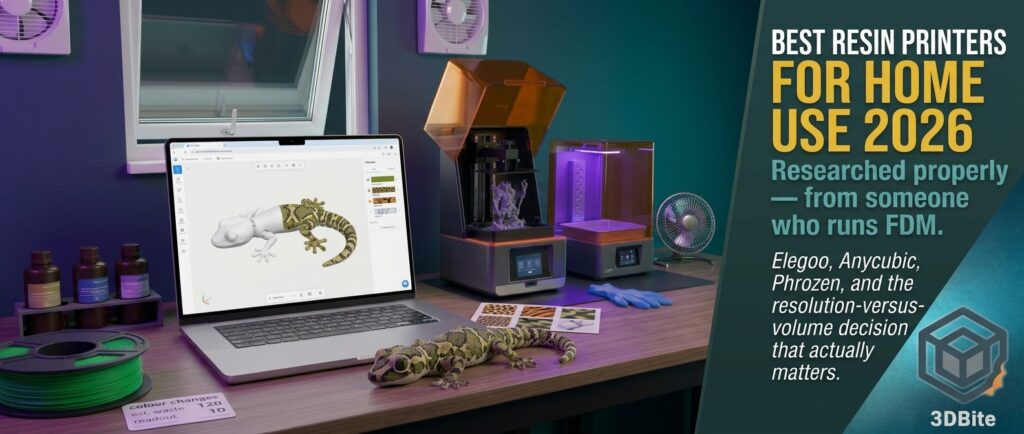
Most multicolour printing tools help you place colour where you decide it should go. KOGI LAB takes a different bet: you pick a pattern, it wraps the whole model in it, and you export a 3MF with every colour already assigned. Think gecko skin, camouflage, koi scales, marble, rather than a painstakingly brushed eye here and a filled belly there. It is a brand-new browser tool from the designer behind a well-known line of articulated flexi creatures, it is clearly built with those kinds of models in mind, and it landed on my radar because the idea is interesting and the pricing model is unusually specific about selling prints. This is a first look, and I want to be clear from the start about what that means.
What it is
KOGI LAB describes itself as a creative tool for colouring 3D models. You upload an STL, OBJ or 3MF, choose a colour pattern, preview it live in 3D in the browser, and export a multicolour 3MF for printing from Bambu Studio, OrcaSlicer, PrusaSlicer or Elegoo Slicer, which are the slicers it lists as tested, with Creality Slicer also shown on the homepage. The homepage promises three steps: upload, apply a pattern, export and print. It supports up to eight filaments, ships with 53 ready presets, and is run by a KOGI3D project, the designer whose articulated geckos, dragons and other flexi creatures appear on MakerWorld, Printables and Etsy, and whose Crested Gecko is the demo model on the homepage.
What is in the editor
The editor is a single-page app with a toolbar on the left, a live 3D viewport and a project panel on the right. Here is what the interface and roadmap show.
| Tool | What it does |
|---|---|
| Patterns | A library of 53 presets in categories including Creatures, Scales, Camouflage and Graphic, with a search box, a “My looks” favourites tab, a “Surprise me” random button and a “Colors only” option. Pattern colours can be random or taken from your own filaments |
| Solid Zone | Fills one side of the model with a single filament, top or bottom, with adjustable height, a wavy edge (wave height, number of waves) and roughness, so a belly or base stays clean. The zone is independent of the patterns |
| Dirt | Darkens crevices and wears edges, which the panel compares to V-Ray dirt. It offers a curvature method (fast, follows every fold) or ambient occlusion (deeper shadows where the model hides itself), with radius, amount and breakup controls. It works over patterns and the Solid Zone |
| Brush | Hand-paint details such as eyes and claws with a size slider, a “stay on part” option, a “paint through” option and X or Y mirroring |
| Fill | Same colour, smooth area, flat side or whole part modes, with an edge sharpness control |
| Parts | Each separate shell in a file counts as a part, so every segment of an articulated model can have its own look, using Pattern A, Pattern B or a single filament |
| Layers | Brush, Fill, Dirt and Solid Zone are layers, with the top layer painting over the ones below, and patterns and part colours always at the bottom |
| Orientation | Rotate 90 degrees on any axis, “Lay on face” by clicking the surface that should touch the plate, and “Auto orient” |
| Project files | Save a .kogi project file and come back later |
The pattern library is heavily weighted towards animal and creature looks, which fits the designer behind it. The categories include reptile skins (a realistic gecko, a ball python, a coral snake, a fire salamander, a poison dart frog), big-cat and savannah markings (leopard spots, tiger, zebra, giraffe), fish and scale effects (koi, goldfish, a mermaid), three dragons, a dozen camouflage styles (woodland, desert, urban, digital, flecktarn, multicam, arctic and more), and a graphic set that includes marble, nebula, lava, stained glass, terrazzo, wood grain and star confetti. It is a library for characters, toys and display pieces rather than engineering parts.
The part I find most interesting: Print check
Colour tools usually stop at the preview, and the real cost of multicolour printing shows up later in the slicer, as purge waste and print time, the subject of the hidden workflow cost post. KOGI LAB has a Print tab that tries to surface that cost before you export. It contains the following.
- Speck cleanup. Single-triangle specks rarely print cleanly and add colour changes, so cleanup merges them into their surroundings, and the panel states brush paint is never changed.
- Flat bottom in one colour. The face the model stands on gets a single filament, so the pattern is not stretched across long triangles on the base. Brush and fill paint still win.
- Layer height selector with 0.12, 0.16, 0.20 and 0.28mm options.
- Colour changes and estimated waste. The tool reports the number of colour changes and an estimated waste figure, calculated for single-nozzle systems (AMS, MMU, CFS) at about 0.33g per change, covering the purge plus the prime tower.
- Export buttons for Bambu Studio, OrcaSlicer, Elegoo Slicer and PrusaSlicer. The note under them says the 3MF opens already painted, with your colours on filament slots 1 to 4, in a project that uses a Bambu P1S with four PLA filaments, and that you should pick your own printer in the slicer. For PrusaSlicer, it says the slicer keeps its own filament colours but the slot assignment carries over.
The roadmap also lists an automatic “auto orient, lay flat and refine the mesh for crisp pattern edges” step as available, and a mesh-refine option is referenced in the Dirt panel as the fix for blocky-looking dirt on low-poly models. How well any of this works in practice is the thing I most want to see on a real model.
What it costs
| Plan | Price | What you get |
|---|---|---|
| Free | $0 | Try the editor without an account. Verify your email and you get 2 free 3MF exports, every pattern, up to 8 filaments, STL, OBJ and 3MF upload, live 3D preview, and commercial use of your prints included |
| Pro | $8.99 a month (yearly billing saves 20%) | Unlimited 3MF exports, subject to fair-use and technical safeguards, all available patterns, described as made for shops and regular sellers. Cancel any time |
| Export pack | $4.99 for 10 exports | One-time payment, no subscription, valid for 12 months |
| Creator | $14.99 a month, proposed | Not available. Planned 30-plus original KOGI models, monthly releases, downloadable model files and a commercial licence for eligible library models |
| Lifetime | Crowdfunding only | Planned one-time payment for lifetime editor access, via a campaign that is “coming soon”. Terms unconfirmed, and it explicitly excludes the future model library |
Some quick arithmetic on the value, which is mine rather than the site’s. An export pack works out at about 50 cents an export, so Pro at $8.99 breaks even at roughly 18 exports a month. For an occasional printer who wants one or two colourways, the free tier and the pack are the sensible routes. For someone running a shop who wants a new colourway for every listing, Pro makes sense. The tool is also aimed squarely at sellers, which brings me to the licence.
The licence, the terms and the privacy policy
These are worth reading before you commit to a workflow, and several points are notable.
- Commercial use on every plan, including Free. The commercial licence says you may sell unlimited physical prints, and sell, share or distribute your exported 3MF files, on Etsy, Shopify, Patreon, MakerWorld or anywhere else, with no royalties, no sales limits and no attribution. Exported files can still be used after a subscription ends.
- It does not change the original model’s licence. You must already have the rights to the model you upload. Colouring or exporting through KOGI LAB does not override a third-party creator’s licence, which is the issue covered in the legal guide to selling prints.
- The patterns stay KOGI’s. You can use them in your creations, but you may not extract, redistribute or resell the pattern assets themselves.
- Exported files carry an export code. The terms say each exported file contains a code that links it to the account that made it, and that you must not change the code. The privacy policy says it uses the code to trace files shared against the terms. That sits slightly awkwardly beside a licence that lets you share and sell your exported 3MFs: it is permitted, but a file you publish publicly can be traced back to your account. That is my reading of the documents, not a statement from the company, and it is worth knowing if you intend to distribute 3MFs.
- Models stay in your browser. The privacy policy says models you open, your paint and your projects are processed on your device and not uploaded to the company’s servers. The feedback form repeats this, saying only the message and a few facts such as the triangle count are sent.
- What is collected. Account details, sign-in records, each export’s date, model file name and filament count, payment references via Stripe, feedback, and usage data on features and tools used, the file type and size of a model you open, country and device type. Before sign-in, usage is linked to a random code for your browser tab. It says it does not sell data, show ads or use data to train AI models, and the site uses Cloudflare analytics without cookies.
- Who runs it. A sole trader based in Lithuania, according to the legal pages, so EU data-protection rules and Lithuanian law apply.
- Fair use and refunds. No creating multiple accounts for extra free exports. Digital content purchases lose the 14-day withdrawal right at checkout, though the terms say that if something does not work as described, you should contact them.
How it compares with other browser painters
KOGI LAB is not the only browser tool that exports painted 3MFs. Here is how the field looks from what each tool says about itself. I have not tested any of the others for this post either.
| Tool | Approach | Filaments | Notes |
|---|---|---|---|
| KOGI LAB | Procedural pattern wrapped over the whole model, plus zones, dirt, brush and fill | Up to 8 | Free tier with 2 exports, then paid. Strong on creature and camouflage looks |
| PrintPal 3D Model Painter | Brush, smart fill, bucket fill and height bands | Up to 16 | Describes itself as free and online. Exports 3MF for Bambu Studio, OrcaSlicer and PrusaSlicer |
| Layerpaint | Auto-partitions the mesh along crease edges into clickable regions | Not stated here | Runs entirely in the browser with no upload. Includes a library of real filament brand colours |
| PaintLab | Paint directly on the mesh, with a non-AMS option that turns regions into fitted parts | Not stated here | Imports STL, OBJ and FBX, with local processing for the main mesh work |
| Bambu Studio and OrcaSlicer paint tools | Brush, fill and height-range painting inside the slicer | Per printer | Free and built in. One competitor’s blog describes them as fine for touch-ups but tedious on organic models |
The honest summary is that the others are mostly about placing colour by hand or by region, and KOGI LAB’s pitch is automatic, patterned colour across an entire model. That is a genuine point of difference for the right kind of model, and a limitation for others. On this site, the Primed3D guide, the Mesh Graffiti guide and the texture guide cover other ways of adding visual interest, and the multicolour rewrite explains why I am wary of colour for its own sake.
What is still on the roadmap
The roadmap page lists 14 items as live and six as planned, with four more ideas being explored. The planned and exploratory ones are worth knowing about, because several are central to the paid tiers and none are available yet.
- Planned: multicolour without an AMS (stripes, bands and fades that change colour by layer height), placing your own logo or text on the model, a look gallery for sharing colourways, real filament colour libraries so the preview matches your spool, a KOGI model library, and cloud projects.
- Exploring: surface and texture tools, turntable videos and listing photos, batch colourways (several variants exported at once), and patterns generated from your own pictures, such as marble, camo or skin.
The real filament colour libraries item matters for anyone who wants the preview to match what comes off the printer, and the batch colourways item would be a big deal for sellers. The site describes the roadmap as a living plan whose priorities may change, which is fair, but it means you should buy for what exists today.
Things to watch before you rely on it
- It is a beta. The editor is labelled v0.12 beta, and the project’s own feedback form says it is an early version.
- Procedural colour is not free colour. A pattern spread over a whole model can mean many colour changes, which means long prints and purge waste on a single-nozzle printer. The tool’s estimate is a good idea, and it uses about 0.33g per change as its yardstick, but I have not seen what real patterns produce.
- Four slots in the export. The editor allows up to eight filaments, but the export note describes colours on filament slots 1 to 4 in a P1S project. If you have an AMS Lite, as I do on both of my printers, four is also your practical limit, so test what happens with designs above four colours before relying on them.
- The project’s printer is a P1S. Switching to an A1 or A2L profile in the slicer is expected, but check the colour assignments survive the change.
- Mesh quality matters. The Dirt panel warns that low-poly models look blocky and suggests refining the mesh, so scans and coarse models may need preparation.
- An account is required to download. Free or not, you must verify an email and sign in to export.
- Traceable exports. If you plan to share or sell 3MFs rather than prints, remember the export code.
- Single-maker project. As with any small tool, longevity is a question. The roadmap and licence are encouraging, but nothing is guaranteed.
How I plan to test it
- Take a multi-part articulated model, since parts-based colouring is a stated strength, and apply two or three of the creature patterns.
- Check the colour-change count and estimated waste for 3, 4 and 6 filaments, and compare against what Bambu Studio’s slicer reports.
- Open the 3MF in Bambu Studio and OrcaSlicer, switch the printer to an A1 and an A2L profile, and check the colour mapping holds.
- Print one model on the A1 with the AMS Lite and judge the pattern edges, any stray specks and the total print time.
- Compare against the same model coloured by hand in the slicer, and against one of the other browser painters, on time spent and result.
- Look at what the export contains, including the export code, and confirm what the Free tier’s two exports are enough to learn.
Who it is for
| You are… | Likely fit |
|---|---|
| Selling flexi creatures, toys or figures | Probably the target audience, especially with Pro and the commercial licence |
| A hobbyist wanting a striking colourway on a gift | Worth trying on the free tier, with the 2 exports |
| An AMS Lite owner | Possible, with care about colour counts and test prints |
| Printing engineering or functional parts | Not the point of the tool |
| Wanting to hand-place colour precisely | The slicer or a painting tool may suit better |
| Worried about purge waste | Use the estimator, and consider a tool changer, as covered in the H3C teaser post |
First impressions
KOGI LAB is an appealing idea, thoughtfully presented, with an unusually clear licence and a sensible free tier for kicking the tyres. The Print check, with its colour-change count and waste estimate, is the feature that suggests the maker understands where multicolour printing actually hurts, and the privacy stance of keeping models in the browser is reassuring. What I cannot yet say is whether the output is any good, whether the patterns survive slicing cleanly, or how many colour changes a typical pattern costs, and until someone has printed a handful of models those are the questions that matter. It is very new, it is a beta, and nobody independent has reviewed it, so I would try it on the free tier with a model you do not mind experimenting on, and judge it by the print rather than the preview. I will follow up once I have exported something and printed it.
Sources and links
- KOGI LAB, with its pricing, roadmap, commercial licence, terms, privacy policy and contact pages, and the editor
- KOGI3D on MakerWorld and the KOGI3D Etsy shop
- PrintPal 3D Model Painter and PrintPal multicolour guide
- Layerpaint and its multicolour guide
- PaintLab: paint STL online