Z-hop is one of those settings that gets switched on “just in case” and then forgotten, partly because the advice around it is contradictory. Some guides say it cures stringing, others say it makes stringing worse, and nearly all of them agree it makes prints slower without saying by how much or whether it matters. The retraction settings post covers Z-hop as one line in a longer table. This is the full explanation: what it physically does, what the different lift modes are for, the situations where it genuinely protects a print, and the many where it is just spending your time.
What Z-hop actually does
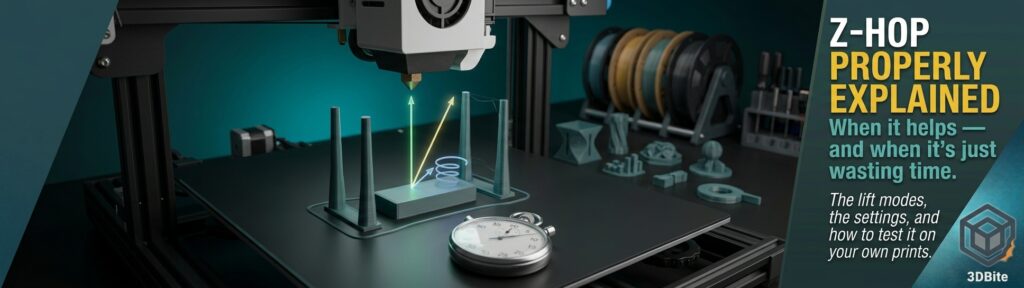
Z-hop lifts the nozzle slightly off the print before a travel move, and lowers it again before printing resumes. The point is purely mechanical: it creates a gap between the nozzle tip and the surface it is about to cross, so the nozzle does not drag across the top of the part, scrape the surface, or knock into something sticking up. Different slicers phrase it differently, “Z hop when retracting” in Bambu Studio, “Z lift” in PrusaSlicer, Z hop in Cura and OrcaSlicer, but it is the same idea throughout.
The most important thing to understand is that Z-hop and retraction are separate actions that happen together. Retraction pulls the filament back to relieve pressure in the nozzle and stop it oozing, as the retraction post explains. Z-hop moves the nozzle upwards. In most slicers the hop is tied to retraction, which is why Bambu Studio’s setting is literally called “Z hop when retracting”. That tie-in has a practical consequence: every time a retraction triggers, a hop triggers with it, so anything that changes how often you retract changes how often you hop.
What it is not: a stringing fix
This is where most of the contradictory advice comes from. Stringing is caused by plastic oozing from the nozzle during travel, which is a temperature, moisture and retraction problem, covered in the stringing post. Lifting the nozzle higher does not stop ooze. Bambu’s own documentation notes that damp filament is more prone to stringing and cannot usually be fully solved by adjusting retraction settings, and the same is true of Z-hop.
Where Z-hop does interact with stringing is through the shape of the lift. Obico’s guide to the settings notes that a plain vertical lift reduces collisions but may increase stringing, whereas the slope and spiral modes are described as reducing oozing and stringing. Bambu’s wiki says the same, that slope, spiral and auto lift can effectively reduce oozing and stringing. The commonly given explanation, which is reasoning rather than something I have measured, is that moving straight up can draw a thin strand of plastic out of the part as the nozzle leaves it, while moving sideways as it rises breaks the strand more cleanly. Either way, treat the lift mode as a small stringing influence at most, never as the cure.
The lift modes
| Mode | What the nozzle does | Strength | Weakness |
|---|---|---|---|
| Normal | Lifts straight up, travels, then drops straight down | The safest against collisions, since it clears the surface before moving sideways | Slowest, and may draw out strings as noted above |
| Slope | Rises diagonally while it travels | Faster, with less time spent lifting and a cleaner break from the surface | More likely to clip the part than a vertical lift, as All3DP points out |
| Spiral | Lifts in a small helical motion | Combines the benefits of the other two, suited to delicate features | Can be slower than slope, and more complex motion |
| Auto | Chooses automatically, using spiral when the travel crosses overhang areas and a normal lift elsewhere | Sensible default that adapts to geometry | Less predictable if you are trying to diagnose a problem |
OrcaSlicer also exposes a travel slope angle that controls how steep the diagonal is. Setting it to 90 degrees makes the lift vertical, which is the same as the Normal mode, and lower angles give a shallower diagonal. The shallower the angle, the faster the hop but the greater the chance of the nozzle clipping something close by, which is the same trade-off as the table.
When Z-hop genuinely helps
Z-hop earns its time cost in situations where the nozzle really could hit something, which is a narrower set than people assume.
- Tall, thin features and small contact areas. OrcaSlicer’s own wiki calls out tall thin parts specifically. A slender tower that is only lightly attached to the plate can be knocked loose if the nozzle brushes it during a travel move, and a hop avoids that.
- Several separate objects on one plate. The same wiki lists multi-object plates as a use case, since the nozzle has to cross the gaps between objects, and any slightly curled edge could catch it. This matters for the batch-printing workflows in the print queue post.
- Parts with curling or warped edges. If perimeters are lifting at the corners, which the skirt, brim and raft post explains, the nozzle can catch the raised edge on its next pass. A hop clears it, though fixing the curl is the better answer.
- Visible top surfaces that scratch. A nozzle that drags across a freshly printed top layer can leave faint scuffs, and a hop prevents that on display pieces where the top surface matters.
- Overhangs and fragile detail. The all-purpose advice is that Z-hop suits fine details, overhangs and delicate parts where the nozzle could damage the surface.
When it is just wasting time
The cost is real. Z-hop increases print time, especially on large models, and All3DP’s advice is to enable it only in warranted cases. The reason it is slower than you might expect is that the Z axis is much slower than the X and Y axes on most printers, so each hop is a small, slow movement, and every retraction triggers one. A model with thousands of travel moves can accumulate a surprising amount of extra time from hops that protected nothing.
- Large, simple, well-printed parts. A solid block or a plain bracket whose perimeters are healthy and flat gives the nozzle nothing to hit, so the hops are pure overhead.
- Vase mode. A spiral vase print has no retractions or travel moves at all, as the vase mode guide explains, so the setting never fires.
- Models with huge numbers of short travel moves. If retraction triggers constantly on tiny hops between neighbouring features, you pay for a hop every time. Raising the minimum travel distance so short moves do not retract also stops them hopping.
- As a way of hiding a moisture or temperature problem. If strings and blobs come from damp filament or the wrong temperature, covered in the temperature tower post and the drying post, the hop will not fix them.
- With flexible filament where retraction is turned off. Bambu notes retraction can have negative effects with TPU, and the usual advice is to reduce or disable it. Because the hop is tied to the retraction in Bambu Studio’s setting, disabling one generally disables the other, so check how your slicer behaves.
One reassuring note for the future. Bambu Studio‘s 2.8.4 beta optimised the top-surface monotonic infill path to reduce travel moves, covered in the 2.8.3 and 2.8.4 post. Fewer travel moves mean fewer retractions and, if you have Z-hop on, fewer hops, so slicer improvements like that quietly reduce the time cost.
Settings and where to find them
| Setting | What it does | Where to find it | Typical starting point |
|---|---|---|---|
| Z hop height | How far the nozzle lifts | Bambu Studio: Filament Settings, Advanced, Setting Overrides, “Z hop when retracting”. OrcaSlicer: Printer Settings, Extruder, Retraction, Z hop height | 0.4 to 0.8mm for PLA, with 0.5 to 1mm a common general starting range |
| Z hop type | Normal, Slope, Spiral or Auto | Alongside the height setting | Auto, or Normal if you are diagnosing |
| Travel slope angle | Steepness of the diagonal in Slope and Spiral modes; 90 degrees equals Normal | OrcaSlicer, in the Z hop section | Leave at default unless clipping occurs |
| Only lift Z above or below | Restricts hops to a height range | OrcaSlicer, in the Z hop section | Useful to skip hops near the plate |
| Minimum travel distance | Shortest move that still retracts, and so hops | Printer Settings, Extruder, in both slicers | 1 to 2mm, raised if you see too many hops |
Menu names change between versions, so use the search box at the top of the settings panel if you cannot find one. As the All3DP guide says, the default values are usually fine to start with, and the lower the hop height the less time it costs.
How to decide for your own prints
The honest answer is to test rather than guess. Print a small plate with several separate towers or islands twice, once with Z-hop off and once with a modest hop of around 0.4mm, and compare two things: the total print time reported by the slicer or printer, and the surface of the tops and edges under raking light. If the surfaces look identical and the hopped version is noticeably slower, you have your answer for that kind of model. If the unhopped version shows scuffing, knocked towers or tiny dragged blobs, the hop is earning its place.
If you do find stringing alongside a hop, work through Obico’s advice rather than the hop height: increase the retraction distance or lower the travel speed, and if time is the concern, reduce the hop height or switch to a slope lift. The retraction post covers the rest of that chain.
Common mistakes
- Leaving a large hop height on everywhere “for safety”, and quietly adding time to every print.
- Expecting Z-hop to fix stringing that is actually caused by damp filament or the wrong temperature.
- Using a steep, fast slope lift on a part with tight clearances and wondering why the nozzle clips it.
- Forgetting the hop is tied to retraction, and not realising a tiny minimum travel distance means hundreds of unnecessary hops.
- Using Z-hop to dodge a curling edge instead of fixing the warping.
- Testing the setting on one model and assuming the result applies to every geometry.
The summary
Z-hop is a collision-avoidance tool that happens to be bundled with retraction. It earns its place on tall thin features, multi-object plates, curling edges, fragile detail and visible top surfaces, and it is mostly wasted time on simple, healthy parts, in vase mode, and anywhere the real problem is moisture or temperature. Keep the height small, prefer Auto or a slope or spiral lift if you want a mild stringing benefit, use the minimum travel distance to avoid pointless hops, and test on a plate with several islands if you are not sure. For most everyday printing on a well-calibrated machine, a modest hop or none at all is plenty.